CreateForge

Two portraits, one love story

Zombie Couple Video Generator

Create a zombie couple video from two separate photos. Give each partner a role, direct a tender reunion, and turn the embrace into a warm memory with an editable story and a live credit quote.

Create your zombie love story

Seedance 2.0

Photo 1 · The person who stays human.

Photo 2 · The person who changes.

JPEG · PNG · WebP · ≤25 MB

Settings15s · 720P · 9:16
15s
Aspect Ratio9:16
Resolution

Add both partner photos before generating.

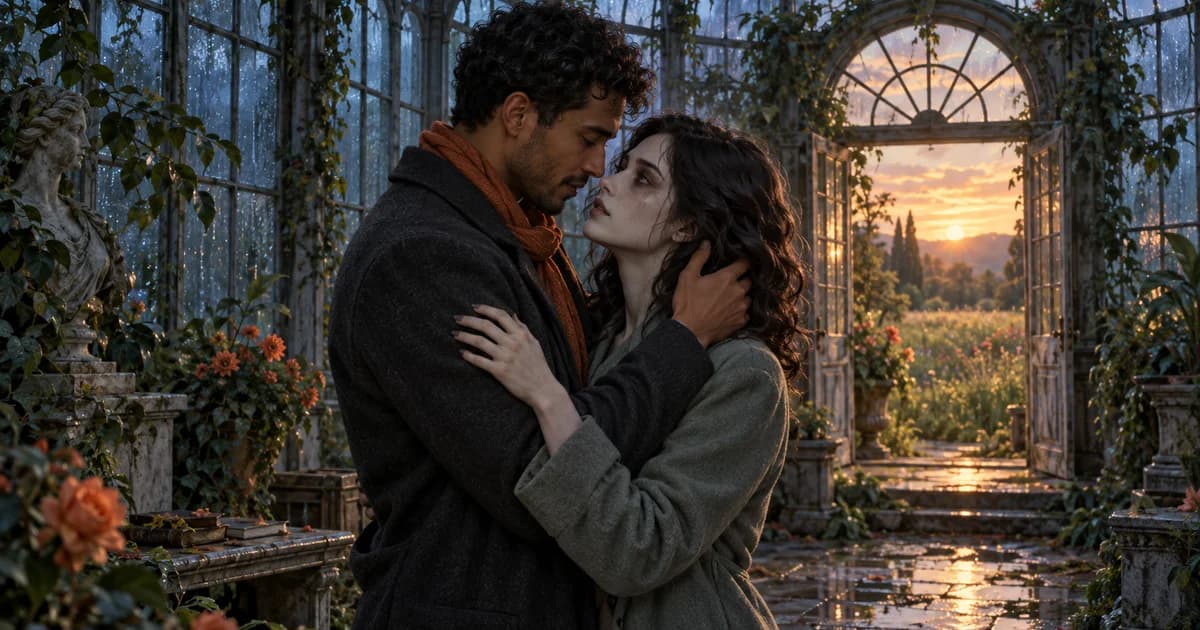
Two fictional adult partners embracing in a ruined conservatory, one with pale zombie makeup
AI-generated concept illustration. Not a Seedance video output; appearance and motion will vary.

Story prompts to try

The conservatory reunion

One approach, one embrace, one memory. Keep the movement restrained.

Use image 1 as the human partner and image 2 as their zombie partner. They meet in an abandoned glass conservatory after rain. The human hesitates, recognizes their partner, and steps into a gentle embrace. Pale theatrical makeup, intact skin, natural hands, slow camera push. Cut to a warm memory of the same couple, both human, in a sunlit meadow. Ambient sound, no dialogue, text, blood, or attack.

A rainy street

A single scene works well when you want to keep the story shorter.

Image 1 is the human partner; image 2 is the changed partner. On an empty rain-wet street, they recognize each other beneath a warm shop light. The human lowers their shoulders, opens their arms, and gently holds the pale zombie partner. Keep both faces visible. A steady chest-height camera, a small step, and a quiet pause. No wounds, attack, text, or logos.

A familiar scarf

A repeated accessory connects the reunion to the memory.

Create a fictional zombie reunion using image 1 for the human and image 2 for their partner. The human notices a familiar orange scarf on the pale, changed partner and recognizes them. They reach for each other and hold a gentle hug. End in a warm memory with both partners human, the same scarf between them. Clear faces and hands, soft ambient sound, no blood, violence, dialogue, or text.

  1. 01

    Choose the two partners

    Add one clear photo of each person. Photo 1 stays human; Photo 2 becomes the zombie. Use photos you have permission to use, with one visible face in each.

  2. 02

    Direct the reunion

    Edit the story, choose the video length and format, then review the current credit quote. Simple actions and a clear ending are easier to direct than a crowded sequence.

  3. 03

    Review and save

    Generate once you are happy with the inputs. Watch the finished clip, check both faces and the embrace, and download the result or find it again in Library.

What is a zombie couple video?

A zombie couple video tells a short fictional story about recognizing a loved one after a frightening change. The tension comes from the meeting; the tenderness comes from choosing to approach and embrace. Many interpretations finish with a brighter memory of the couple before the transformation.

Here, two separate portraits guide the characters and an editable prompt directs the scene. The tool uses Seedance 2.0 reference-to-video generation. It is a creative workflow, not a guaranteed remake of a particular viral clip, and generated faces, gestures, and scene transitions can change.

Prepare photos that keep both people readable

Choose one recent, evenly lit photo per partner, with a clear face and enough space around the head and shoulders. Avoid sunglasses, strong filters, motion blur, and several people in the same image. Two photos with similar lighting make it easier to describe a consistent scene.

The photo positions assign the roles, regardless of which upload finishes first. Replacing Photo 1 changes the human reference; replacing Photo 2 changes the zombie reference. Removing either photo pauses quoting until both references are ready again. Follow the format and size limits shown beside the uploads.

Direct one clear interaction

Start with a simple sequence: pause, recognize, take one step, hug, then hold. Describe the zombie appearance as makeup rather than adding wounds or a violent attack. Keep hands visible and avoid a fast camera orbit during the embrace; overlapping arms and complicated movement can make the interaction less readable.

The default story adds one warm memory at the end. For a shorter clip, remove that transition and focus on the reunion. For a longer story, allow each emotional beat time to settle. Duration, format, resolution, and audio controls use the connected model's supported settings.

Credits, review, and saved results

The credit cost comes from a live server quote for your selected settings, not a fixed price printed in this guide. Changing the prompt, photos, duration, or resolution requests a fresh quote. Generation requires an account and enough available credits; opening a story example does not start a task or spend credits.

After generation, check the identities, hands, motion, and final scene before sharing. A clear failed task releases its reserved credits under the existing generation rules. Completed media is saved to Library with its actual credit use. Result file URLs are public; an account is still required to browse your Library and task history.
Common questions

Yes. Add one photo per partner. The first slot supplies the human reference and the second supplies the zombie reference. Both must finish uploading before the tool quotes or submits a task.

No. The positions assign story roles, not genders. Describe the two people as partners, girlfriends, boyfriends, wives, or husbands in the editable story.

Photo references guide the characters, but exact likeness is not guaranteed. Faces, clothing, hands, and movement can vary. Start with clear photos and review the generated result carefully.

Yes. Edit the prompt and use the supported duration, format, resolution, and audio controls. For a short clip, keep one action rather than compressing several scenes into it.

Generation uses CreateForge credits. Sign in and review the live quote before submitting; this page does not promise a free video or a fixed cost for every setting.

Reference photos use the current temporary upload workflow, not a permanent material library. Refreshing the page requires selecting the files again. Successful generated videos are saved to Library, and their file URLs are public.