How long are Veo 3.1 videos?
Learn how long Veo 3.1 videos are in the connected CreateForge workflow, how the fixed duration affects shot planning, credits, motion, audio, and review.
By CreateForge Editorial · Reviewed 2026-08-18
Independent editorial cover. The uncropped provider-verified output and its production context appear below.
How long are Veo 3.1 videos in CreateForge? The connected production Blueprint currently fixes the supported output duration, and the page reads that limit from the same Catalog used by the generator. The current Veo 3.1 duration is displayed in the live model facts below and in the generator controls. CreateForge reads it from the production Blueprint rather than hardcoding a number in article prose. That distinction matters because provider announcements and other interfaces may expose settings that are not connected to this workflow.
Duration is a creative boundary as well as a technical limit. A strong prompt assigns the available time to one subject action, one camera behavior, and an observable final state. A short generated shot can become part of a longer sequence in an editor without asking the model to perform every cut in one request.
Production evidence
Provider-verified output behind this guide
The displayed output comes from the documented production acceptance. Prompt pages provide reusable templates below; they do not claim that every template produced this one evidence image.
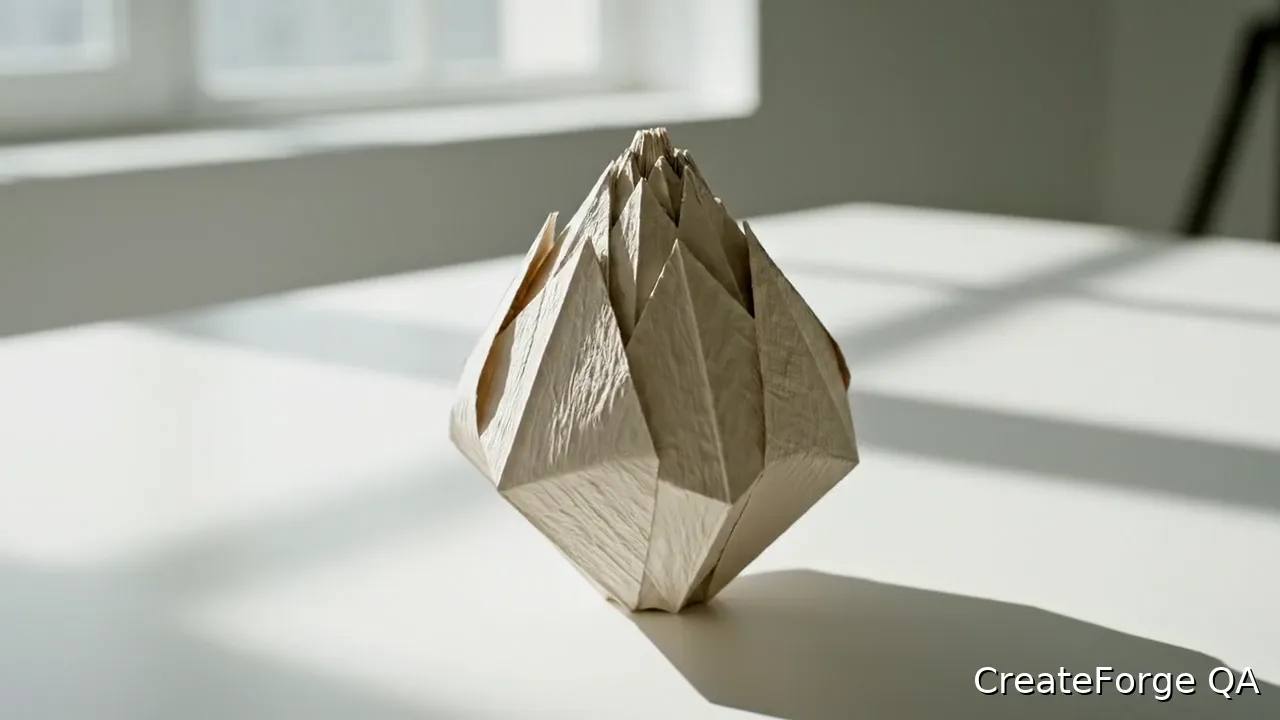
Provider-verified production output
Public brief summary: one controlled continuous shot used to verify provider submission and video output handling; the complete acceptance prompt remains private.
- Verified
- 2026-08-17T07:17:24.420Z
- Settings
- text-to-video workflow · 16:9 · 720P · 8 seconds
- Result
- Provider task succeeded with one video output during the documented production acceptance.
01
How long are Veo 3.1 videos in the connected workflow?
Use the model facts on this page for the fixed, minimum, or maximum duration supported by the current Blueprint. Then confirm the generator summary before requesting a quote. If the interface does not expose a duration option, do not assume that a provider-level setting can be inserted into the request manually.
The canonical model page remains the operational source when an article, launch announcement, or old screenshot differs. CreateForge validates the parameters server-side, so an unsupported value will not become available merely because it appears in prompt text or a query string.
02
Fit one complete action into the available time
Write a beginning, action, and ending that can occur continuously. A product can rotate and settle, a person can turn toward camera, or a door can open to reveal a space. Avoid adding a second location, time jump, and title card unless the request is explicitly designed as a transition and the duration can support it.
Use pace words tied to the action: slowly, in one measured movement, pauses briefly, or settles before the end. Identify the camera move separately. This gives the model a temporal structure and gives the reviewer a clear way to judge whether the shot used its duration successfully.
03
Use source frames to define start and destination
A first frame anchors opening composition and identity. Where an ending frame is supported, it should describe the destination of the same shot, not an unrelated scene. The prompt then explains the motion between those states. Prepare both frames at compatible orientation and visual scale.
Frames can improve planning but do not guarantee every intermediate detail. Review the clip for morphing, camera jumps, edge invention, and identity drift. If a transition is too ambitious for the available time, simplify the destination or create two shots for an editor to connect.
04
Build a longer sequence from focused clips
Plan a shot list with a purpose for each clip: establish the setting, show the product action, capture a detail, or end on a clean composition. Keep visual rules such as palette, camera height, subject appearance, and movement style in a shared brief. This creates continuity without forcing one generation to contain an entire commercial.
Use the private Library files as editorial sources after storage reconciliation. Name or record accepted shots with their prompt and controls, then assemble them in a video editor. The generation duration defines each source clip; the final program length is an editorial decision made from several assets.
05
Design a production around the current Veo duration
The connected CreateForge workflow exposes a fixed duration, so a longer story must be designed as several intentional shots. Start with a beat sheet that gives each clip one job: establish the location, show the action, reveal a detail, or close the sequence. Write a distinct prompt for each beat instead of asking one clip to compress the full narrative. This preserves readable timing and gives an editor clear choices when one shot needs replacement.
Plan continuity before generation. Create a short continuity note for subject appearance, wardrobe, prop position, screen direction, lens language, time of day, and palette. Reuse only the details needed by the neighboring shot, because repeating an enormous prompt can constrain irrelevant elements and still fail to define the transition. When a first or last frame is available, use it to protect composition while the text describes movement and endpoint.
Treat the current duration as total clip time, not guaranteed seconds of useful action. Leave room for the subject to settle at the beginning and for the final state to become readable before the clip ends. If the prompt contains a long setup followed by several actions, the model may compress events or omit the ending. A simple timing plan such as hold, move, reveal, settle makes the expected rhythm easier to review.
Review audio independently from the picture. Check whether the sound source belongs in the scene, begins at the correct moment, and remains consistent across an edit. A visually accepted clip may still need sound replacement, and that can be cheaper than another generation. Conversely, a continuity error in subject or camera usually cannot be repaired by audio work and should be addressed in the source or prompt.
Estimate credits at the shot level and keep a revision allowance for the clips that carry the most narrative risk. Use the live protected quote because the connected mode determines the actual request. After editing, record which clips were used, trimmed, replaced, or discarded. That history gives a realistic cost per finished sequence and reveals whether the duration, the brief, or the approval process created the most waste.
Live catalog data
Current CreateForge model facts
These values are rendered from the production Catalog and generator Blueprint. The protected quote shown in the model workspace remains authoritative for a specific request.
Veo 3.1 Quality
- Modes
- Text to Video, Frames to Video
- Resolution
- 720P
- Aspect ratios
- Auto, 16:9, 9:16
- Duration
- 8 seconds
- Input roles
- First frame: up to 1; Last frame: up to 1
- Native audio
- No generated audio control
- Output formats
- Provider default
- Current minimum
- 225 CreateForge credits
- Pricing verified
- 2026-08-28
FAQ
Common questions
How long is a Veo 3.1 video?
The current CreateForge duration is displayed in the live model facts and generator controls, which are derived from the connected production Blueprint.
Can I request a longer Veo video in the prompt?
Prompt text cannot override the connected adapter’s supported duration. Create multiple focused shots and assemble them editorially when a longer sequence is required.
Does using a first frame change duration?
Use the model facts and quote for the selected mode. A first frame changes the visual starting point, but only the production controls determine supported duration.
How do I make a longer Veo 3.1 story?
Break the story into shots with stable visual rules, generate and review each one, then assemble the saved Library assets in an editor.
Continue in CreateForge
Move from research to the connected workflow.
Open the exact production model, review the current controls and quote, or compare the wider tool catalog before submitting a task.
Related guides
Video guide
How to use Veo 3.1 for a controlled AI video shot
Plan and generate a Veo 3.1 shot in CreateForge with text or frame guidance, camera direction, sound intent, protected quotes, and saved video results.
Pricing guide
Veo 3.1 pricing and AI video credit planning
Learn Veo 3.1 pricing, cost, free limits, model options, and Fast versus Quality tradeoffs before creating AI videos on CreateForge AI.
Model comparison
Veo 3 Fast vs Quality: compare Veo 3.1 models
Compare Veo 3.1 Fast and Quality by live modes, inputs, resolution, duration, audio, protected credit quotes, fair testing, retries, and accepted-result cost.