How to use Veo 3.1 for a controlled AI video shot
Plan and generate a Veo 3.1 shot in CreateForge with text or frame guidance, camera direction, sound intent, protected quotes, and saved video results.
By CreateForge Editorial · Reviewed 2026-08-18
Independent editorial cover. The uncropped provider-verified output and its production context appear below.
Learning how to use Veo 3.1 begins with one continuous shot, a deliberate starting mode, and motion and sound directions that can be reviewed at the end. Veo 3.1 is easier to direct when the prompt describes one shot rather than an entire edit. A useful brief names the subject, action, environment, camera movement, light, timing, and sound. CreateForge pairs that direction with the currently supported text or frame-guided mode and a protected quote before submission.
This workflow focuses on producing a reviewable clip that can fit into a larger sequence. It does not promise that one generation will create a finished campaign edit. Instead, it shows how to control the first and last visual state, keep movement coherent, evaluate audio and image together, and preserve a successful result.
Production evidence
Provider-verified output behind this guide
The displayed output comes from the documented production acceptance. Prompt pages provide reusable templates below; they do not claim that every template produced this one evidence image.
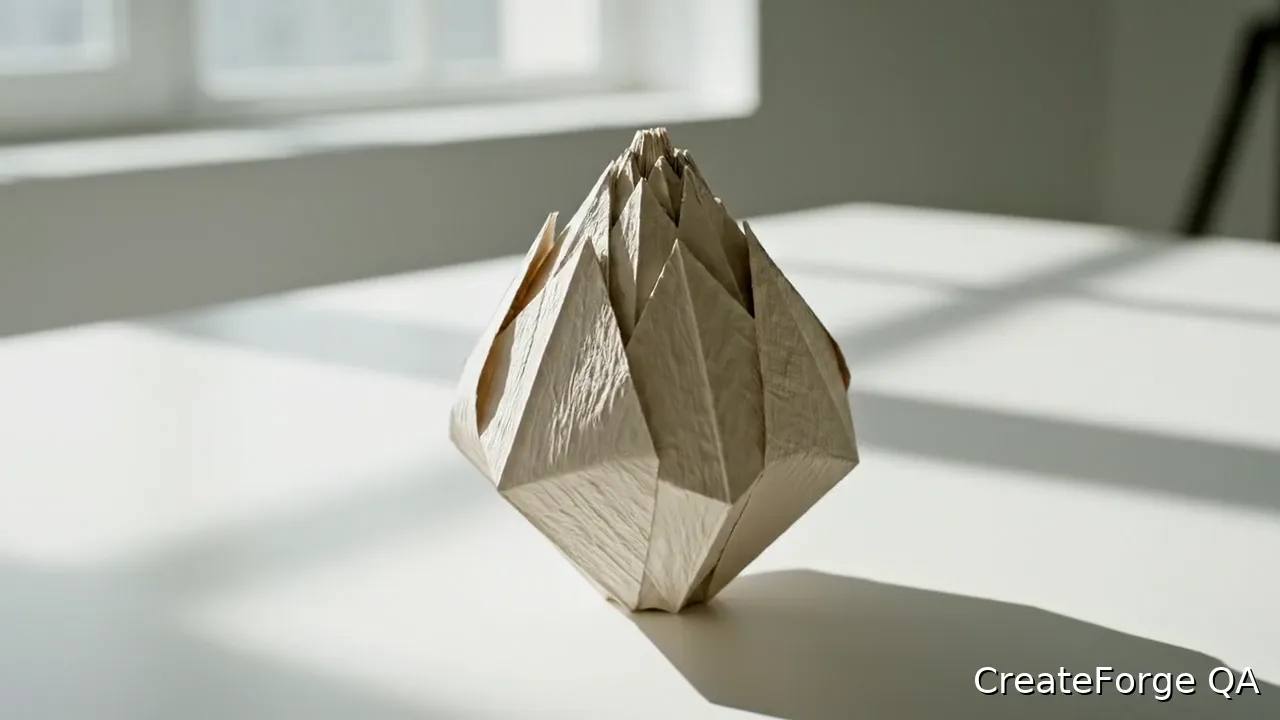
Provider-verified production output
Public brief summary: one controlled continuous shot used to verify provider submission and video output handling; the complete acceptance prompt remains private.
- Verified
- 2026-08-17T07:17:24.420Z
- Settings
- text-to-video workflow · 16:9 · 720P · 8 seconds
- Result
- Provider task succeeded with one video output during the documented production acceptance.
01
How to use Veo 3.1: choose the starting mode
Write the shot as a sequence that can happen continuously: the subject begins in a clear state, performs one primary action, and arrives at a recognizable end state. Add one camera move, such as a slow push, lateral track, or gentle orbit. Multiple cuts, locations, and time jumps compete for a short clip’s limited duration and often reduce continuity.
Describe the environment only to support the action. Lighting direction, weather, surface response, and depth can make motion readable, but an inventory of background objects may distract from the subject. If a sound matters, identify its source and timing instead of requesting generic cinematic audio.
02
Choose text or frame guidance
Use text-to-video when the model may invent the full scene. Use a first frame when composition, product identity, or character appearance must begin from an approved visual. Where the connected workflow supports an ending frame, use it to communicate the destination of the movement rather than treating it as a second unrelated reference.
Prepare frames at the intended orientation and remove interface chrome or accidental borders. The prompt should describe the motion between frames, not repeat every visible detail. State what stays stable, what moves, how the camera behaves, and which changes should be avoided, such as morphing logos or changing product proportions.
- Text-to-video gives the model more freedom to invent composition and subject appearance.
- A first frame anchors the opening composition and is useful for image-to-video continuity.
- A closing frame should describe the same shot’s destination rather than a separate scene.
03
Review the current Veo 3.1 controls and quote
The CreateForge model page shows only the Veo 3.1 controls connected to the current production adapter. Resolution, duration behavior, aspect ratio, mode, and optional fields should be read from that interface and the model facts displayed here. Do not assume that every feature mentioned in a provider announcement is available through this specific workflow.
Request the protected quote after the input and controls are final. Video cost can differ materially from image generation, and changing a mode or supported parameter can produce a new quote. Confirm the model, input summary, and credits before submitting instead of using an old article number as a checkout value.
04
Evaluate motion, continuity, and sound
Watch the whole clip several times with different questions. First inspect subject identity and geometry, then motion and camera continuity, then the background, and finally sound timing. Look for abrupt speed changes, texture crawling, disappearing objects, lip or impact timing problems, and frame-edge artifacts that a single paused thumbnail will not reveal.
A successful video is persisted to the private CreateForge Library after reconciliation. Download or review that stored asset when deciding whether to use the shot. For the next attempt, revise one category such as action timing or camera direction while preserving the parts that already work, so the iteration has a clear hypothesis.
05
Review Veo 3.1 as a shot, not a still image
Watch the completed clip several times with a different question on each pass. First check subject identity and geometry, then camera continuity, motion path, background stability, edge behavior, and finally sound timing. A visually strong opening frame can hide a broken transition later in the shot. Review at normal speed before using slow playback, because the final audience will experience pacing and attention shifts in real time rather than as isolated frames.
For an edit handoff, record the intended in and out points, whether native audio is usable, and which defects can be trimmed instead of regenerated. Keep one clip per editorial purpose and use the private Library asset as the durable source after provider delivery. When a revision is required, preserve the approved subject, camera, and light instructions and change only the failed event. This makes the next task more interpretable and controls the cost of chasing unrelated visual variation.
Live catalog data
Current CreateForge model facts
These values are rendered from the production Catalog and generator Blueprint. The protected quote shown in the model workspace remains authoritative for a specific request.
Veo 3.1 Quality
- Modes
- Text to Video, Frames to Video
- Resolution
- 720P
- Aspect ratios
- Auto, 16:9, 9:16
- Duration
- 8 seconds
- Input roles
- First frame: up to 1; Last frame: up to 1
- Native audio
- No generated audio control
- Output formats
- Provider default
- Current minimum
- 225 CreateForge credits
- Pricing verified
- 2026-08-28
FAQ
Common questions
Can I use an image with Veo 3.1?
Yes. The connected CreateForge workflow supports frame-guided generation. Use an approved opening image and describe the motion that should follow from it.
How long is a Veo 3.1 video in CreateForge?
The current duration behavior is shown in the model facts and generator controls on the page. Those production values are preferred over copied provider announcements.
Does Veo 3.1 support sound direction?
The prompt can include sound intent for the connected workflow. Review the resulting audio and visual timing together before treating the clip as approved.
Where is a successful Veo clip stored?
CreateForge saves eligible successful video output to the authenticated user’s private Library after provider and storage reconciliation complete.
Continue in CreateForge
Move from research to the connected workflow.
Open the exact production model, review the current controls and quote, or compare the wider tool catalog before submitting a task.
Related guides
Pricing guide
Veo 3.1 pricing and AI video credit planning
Learn Veo 3.1 pricing, cost, free limits, model options, and Fast versus Quality tradeoffs before creating AI videos on CreateForge AI.
Model limits
How long are Veo 3.1 videos in CreateForge?
Learn how long Veo 3.1 videos are in the connected CreateForge workflow, how the fixed duration affects shot planning, credits, motion, audio, and review.
Model comparison
Veo 3 Fast vs Quality: compare Veo 3.1 models
Compare Veo 3.1 Fast and Quality by live modes, inputs, resolution, duration, audio, protected credit quotes, fair testing, retries, and accepted-result cost.