How to use Nano Banana Pro for high-resolution image work
A practical Nano Banana Pro guide covering text and reference workflows, prompt hierarchy, resolution planning, output format, quotes, and final quality review.
By CreateForge Editorial · Reviewed 2026-08-18
Independent editorial cover. The uncropped provider-verified output and its production context appear below.
Learning how to use Nano Banana Pro means treating resolution, reference control, and output review as production decisions instead of adding detail without a delivery purpose. Nano Banana Pro is positioned for image work where reference control and higher-resolution delivery deserve deliberate planning. The word Pro does not remove the need for a precise brief: a larger output can reveal more detail, but it can also reveal small errors in labels, anatomy, product geometry, and repeated textures.
CreateForge connects the model to text-to-image and image-to-image workflows with resolution and format controls. The safest process is to prove the composition at an appropriate review setting, inspect the result against a written checklist, and move to a higher delivery setting only when the underlying image is already correct.
Production evidence
Provider-verified output behind this guide
The displayed output comes from the documented production acceptance. Prompt pages provide reusable templates below; they do not claim that every template produced this one evidence image.
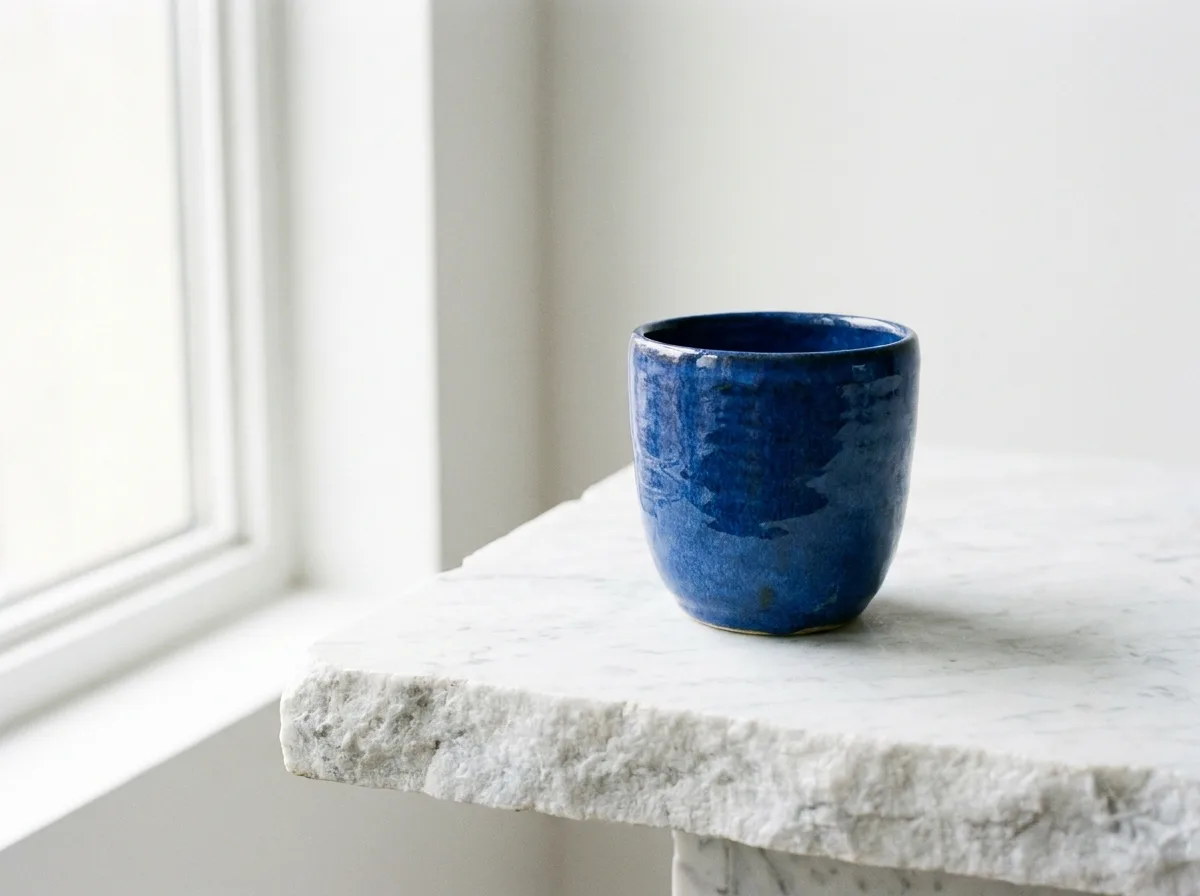
Provider-verified production output
Public brief summary: a controlled studio composition used to verify provider submission and image output handling; the complete acceptance prompt remains private.
- Verified
- 2026-08-17T07:16:35.839Z
- Settings
- text-to-image workflow · 4:3 · 1K · PNG
- Result
- Provider task succeeded with one image output during the documented production acceptance.
01
How to use Nano Banana Pro: prepare the production brief
Use a lower-cost review setting for early composition decisions when the final pixel dimensions are not yet necessary. Confirm the subject, camera, layout, negative space, and reference fidelity first. Increasing resolution will not repair a weak composition, and repeatedly generating final-size files can consume budget before the creative direction is approved.
Choose a higher setting when the asset is moving into close review, larger display, print preparation, or detailed retouching. The exact protected quote reflects the selected controls. Treat that quote as the current transaction value and treat any number in an article as explanatory context, because provider rates can be revised independently of the page.
02
Build a clear hierarchy in the prompt
Place the deliverable and non-negotiable subject first. Continue with composition, camera, environment, lighting, material behavior, palette, and finish. If a product must preserve its silhouette or a portrait must preserve identity, state that rule close to the reference instruction rather than hiding it among stylistic adjectives.
Use precise production language where it helps a reviewer make a decision: centered pack shot, three-quarter camera, soft key from camera left, matte polymer, clean headline area. Avoid piling on several art movements or lens descriptions that pull in opposite directions. A strong prompt tells the model what matters most and what may remain flexible.
03
Control edits with purposeful references
Prepare reference files so each one contributes a distinct constraint. An identity reference should be clear and unobstructed; a style reference should demonstrate color, light, or material rather than introduce a competing subject. In the prompt, name the role and define what can change. This reduces the chance that style replaces identity or that background details leak into the result.
For iterative edits, change one category at a time. First correct the layout, then the material or color, then smaller finishing details. If every instruction changes between attempts, there is no stable baseline for deciding whether Nano Banana Pro followed the requested edit or simply generated a different image.
04
Inspect the full-resolution result
Review the output at both fit-to-screen and full size. The first view reveals composition; the second reveals edges, fingers, repeating patterns, small typography, reflections, and texture continuity. Confirm that the selected file format fits the next tool in the workflow and that any visible claim or label has been checked by a person before publication.
CreateForge records an eligible successful result in the private Library after storage succeeds. Use the stored file for approval and downstream editing. Retaining the selected parameters, quote, and model beside the result makes it easier to reproduce the production decision or explain why a later variation costs differently.
05
Use high resolution as a delivery gate
Higher resolution should answer a delivery requirement. Before selecting the largest option, confirm the final crop, physical size, viewing distance, and whether small typography or product texture must survive. A social thumbnail and a full-width campaign banner have different evidence needs. Testing the composition at a suitable review tier can reduce expensive repetitions, but the final candidate should still be generated and inspected at the resolution that will actually be delivered.
At handoff, examine fine structure rather than trusting the resolution label. Zoom into logos, packaging seams, hair, jewelry, patterned fabric, repeated windows, and specular highlights. Check that image references influenced the intended properties without introducing unwanted objects or identities. Keep the accepted Library asset and document any final crop or retouch so a future revision starts from the approved creative decision instead of restarting the entire exploration.
06
Preserve proof for the approved asset
For regulated, brand-sensitive, or client work, preserve a compact record of the approved prompt, source permissions, selected controls, Library asset, and reviewer decision. The record should exclude passwords and unrelated personal data. Its purpose is to support a later correction without relying on memory or an expired Provider URL.
Compare the final export with that approval record after retouch, color conversion, or layout. A production change can reintroduce a typo, crop away a required feature, or alter color even when the generated source was correct. Treat generation approval and delivery approval as two related but separate checkpoints.
Live catalog data
Current CreateForge model facts
These values are rendered from the production Catalog and generator Blueprint. The protected quote shown in the model workspace remains authoritative for a specific request.
Nano Banana Pro
- Modes
- Text to Image, Image to Image
- Resolution
- 1K, 2K, 4K
- Aspect ratios
- Auto, 1:1, 16:9, 9:16, 3:2, 2:3, 4:5, 5:4, 3:4, 4:3, 21:9
- Duration
- Still image
- Input roles
- Reference images: up to 8
- Native audio
- No generated audio control
- Output formats
- png, jpg
- Current minimum
- 8 CreateForge credits
- Pricing verified
- 2026-08-28
FAQ
Common questions
Does Nano Banana Pro support image editing?
Yes. The CreateForge adapter supports text-to-image and private reference-image workflows. State what each reference controls and what is allowed to change.
Should I generate every Nano Banana Pro draft at 4K?
No. Prove the creative direction at the setting appropriate for review, then use a higher resolution when the composition and subject are ready for detailed delivery.
Does resolution change Nano Banana Pro pricing?
It can. CreateForge calculates the current protected quote from the selected model and parameters, so review the displayed quote before each submission.
Which output file should I review?
Use the asset saved to your private CreateForge Library after successful reconciliation, rather than depending on a temporary provider URL.
Continue in CreateForge
Move from research to the connected workflow.
Open the exact production model, review the current controls and quote, or compare the wider tool catalog before submitting a task.
Related guides
Field guide
Best AI image model: how to choose for real creative work
Find the best AI image model for a real deliverable by comparing reference control, typography, resolution, iteration cost, repeatability, and saved results.
Model comparison
Nano Banana 2 vs Nano Banana Pro for image work
Compare Nano Banana 2 and Nano Banana Pro by production controls, resolution, references, minimum credits, prompt testing, and the cost of an approved image.
Pricing guide
Nano Banana Pro Cost: pricing, free limits, and alternatives
Learn Nano Banana Pro cost, pricing, free limits, API pricing context, and alternatives before creating high-resolution images on CreateForge AI.